
Screen Recorder | Video Rec
Infinity Tech SystemsVideo Players & Editors
4.8101.00 Reviews
- Version
- 9.4
- Installs
- 100.00K
- Age Rating
- Everyone
Screenshots
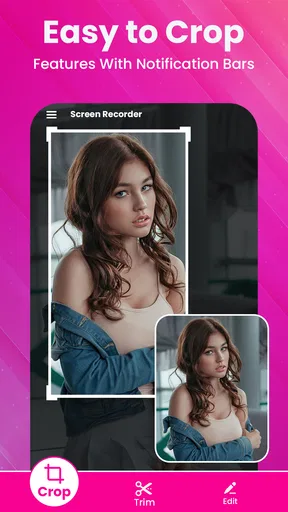
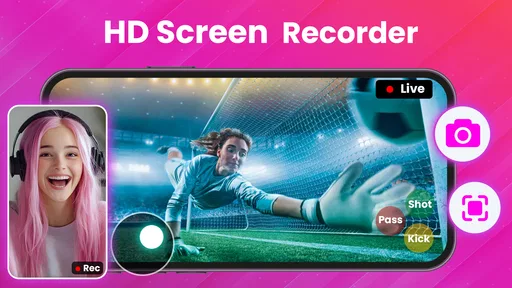
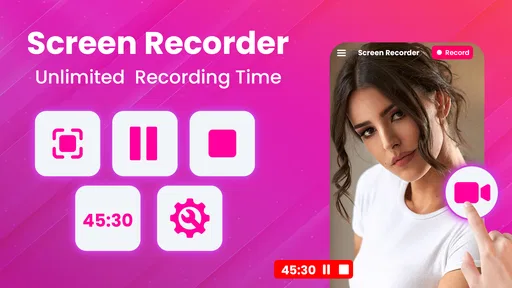
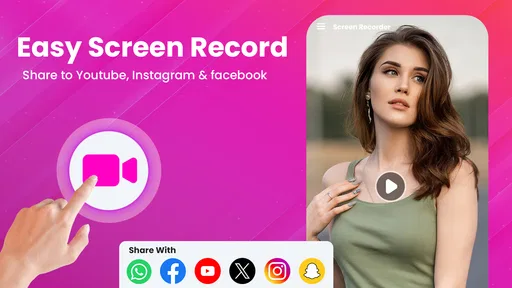
Our Review of Screen Recorder | Video Rec
 Analysis by Appyee
I approached Screen Recorder | Video Rec as a practical Android tool rather than as a flashy editing suite. Its job is straightforward: capture what is happening on your phone, with audio when the situation allows it, and turn that activity into a video you can keep or share. That focus is useful, but screen recording is also a privacy-sensitive task, so I paid attention not only to how quickly recording starts, but also to the choices the app puts in front of the user.
The app comes from Infinity Tech Systems and sits in the video players and editors category. It is free to install, carries an Everyone age rating, and has reached over one hundred thousand installs. Its current version is 9.4, and it works on Android 6.0 or later. Those details make it accessible to a wide range of Android users, including people with older phones who may not have a modern built-in recorder.
My overall impression is positive, with an important qualification: this is most appealing when you want a dedicated recorder with a simple workflow, not when you need a full production environment. It can be a convenient way to document a phone setting, demonstrate an app, save a short gameplay moment, or record a video call where recording is appropriate and permitted. At the same time, I would not treat any screen recorder as invisible or automatically private. The content on screen, the audio captured, and the way you share the resulting file still require careful handling.
How the recorder fits into everyday Android use
The best way to understand this app is to imagine a common support situation. A family member cannot find a setting on their phone, so instead of writing a long explanation, I can record the steps: open the relevant menu, tap the option, and show the result. A short visual guide is often clearer than a string of messages. The same workflow works for demonstrating an app bug, showing a mobile game technique, or preserving a temporary process that would be difficult to explain in words.
For these tasks, a dedicated screen recorder can be more comfortable than relying on whatever recording option happens to be included by the phone manufacturer. Built-in tools are convenient when available, but they differ widely between Android devices. Some are hidden in quick settings, some offer limited audio choices, and some are absent on older systems. This app gives users who need a separate recorder another route, especially on devices running Android 6.0 or newer.
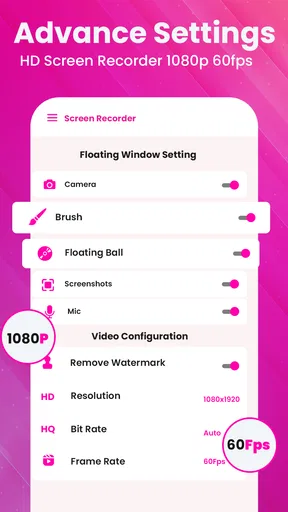
The store summary highlights FHD and UHD recording and audio support, including use with FaceTime-related recording scenarios. I would interpret that as an indication of the app’s intended range, not as a promise that every phone will produce the same result. Resolution depends on the handset, display, available storage, heat, and the source material itself. Recording a high-resolution screen can also create larger files and put more pressure on the phone than capturing a short standard-definition tutorial.
That trade-off matters in real use. If I am recording a menu walkthrough for a friend, maximum resolution is usually unnecessary. A smaller file is easier to store and send, and the text may still be perfectly readable. For detailed visual material, a game with small interface elements, or a design demonstration, higher quality can make sense. I would choose the setting based on the purpose of the recording instead of selecting the highest option automatically.
Starting a recording without losing the moment
A screen recorder is only useful if it can be prepared before the action begins. My preferred routine is to open the app first, decide whether audio is needed, check the intended quality, and then navigate to the screen I want to capture. This avoids recording the setup process or missing the beginning of a demonstration. It also gives me a chance to close private notifications and remove unrelated apps from view.
For a quick support clip, I would keep the recording short and focused. A concise video is easier for the recipient to understand and less likely to expose unrelated information. For gameplay or a longer explanation, I would first make sure the phone has enough free storage and is not already running hot. Screen recording is not a good time to discover that the device is nearly full or that several demanding apps are active in the background.
The audio choice deserves special attention. A recording can be useful with microphone narration, internal device sound, or no sound at all, depending on what the app and Android version make available in the particular situation. I would test this with a brief sample before recording something important. A silent video, distorted voice, or missing game audio is much easier to prevent than to repair afterward.
This small test is one of the most useful habits with any recorder. It answers practical questions immediately: does the microphone hear me clearly, is the source audio present, and does the video remain smooth enough? It also reduces the chance of accidentally creating a long file that has to be discarded. I consider this more valuable than simply trusting a label that says audio is supported.
Quality choices and the cost of convenience
The app’s appeal is partly its flexibility around screen quality, but flexibility creates decisions. A high-resolution recording may look sharper, yet it can consume considerably more storage and may be harder to share. If I am sending a tutorial through a messaging service, the service may compress it anyway. In that case, a moderate setting can be the more sensible choice.
On the other hand, reducing quality too far can make small text unreadable. This is especially noticeable when recording settings pages, spreadsheets, creative work, or games with compact controls. My practical approach is to record a short sample containing the smallest text or most detailed movement that will appear in the final video. If that sample is clear on another device, the chosen setting is probably adequate.
Long recordings also expose limitations that are less visible during a quick test. Heat can affect comfort and performance, battery use becomes more important, and a large file can be awkward to move. For extended sessions, I would keep the phone connected to reliable power, avoid covering ventilation areas, and stop between sections rather than creating one enormous clip. Splitting a tutorial into logical parts can make editing and sharing easier as well.
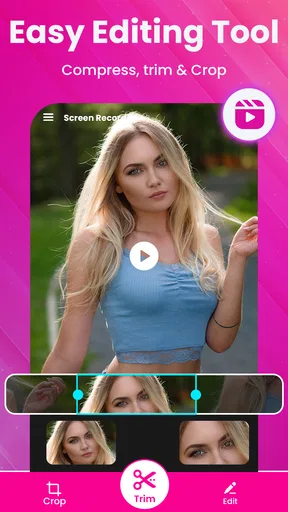
I would not choose this app as my main tool for advanced post-production. Its central value is capture. If I need a timeline with multiple layers, detailed color correction, captions, transitions, or careful audio mixing, a dedicated editor is a better companion. The recording can still serve as the source material, but the app should not be judged as though it were intended to replace a complete video studio.
Privacy begins before the record button
Screen recording creates a direct copy of whatever appears on the display. That can include messages, account names, notifications, payment details, private photos, or one-time codes. Even if the recording itself is made for a harmless reason, the resulting file can become sensitive. I make a quick privacy pass before starting: silence notifications, close private conversations, and avoid opening screens that do not belong in the final clip.
This is particularly important when recording a troubleshooting video. It is easy to focus on the problem and forget that a notification banner may reveal a person’s name or part of a message. I would also avoid showing passwords, authentication codes, addresses, and financial information. If a private screen must appear briefly, I would stop and record that section separately only if it can be safely demonstrated.
Audio requires the same care. Microphone narration can capture people speaking nearby, television audio, or conversations that were not intended for the recording. Internal audio can also contain material that is not obvious until playback. Before sharing a clip, I would watch and listen to the entire file, not just the beginning. This is a simple but important control because a recording that looks harmless in a thumbnail may contain sensitive material later.
I appreciate that the app is positioned as a tool for recording with audio, but I would still treat audio as an active decision rather than a default convenience. If I am merely demonstrating taps and menus, silence may be the safest option. If narration adds value, I would record in a quiet place and tell anyone nearby that the microphone may be active. The right setting depends on the situation, not just on the app’s capabilities.
Trust, controls, and visible choices
My trust in a recorder comes less from promotional wording and more from what I can see and control while using it. Before granting access or beginning a session, I want Android’s permission prompts and the app’s visible controls to make the action understandable. I look for a clear way to start and stop recording, an obvious indication that capture is active, and a predictable place to find the finished video.
I also prefer to grant only the access needed for the task at hand. If Android presents a permission choice, I read it instead of tapping through automatically. When the recording is finished, I review the app’s access in system settings and remove anything I no longer want enabled. This is not unique to Screen Recorder | Video Rec, but it is especially relevant here because the app deals with screen content and, when selected, audio.
The app is free, which lowers the barrier to trying it, but it includes in-app purchases ranging from $4.99 to $29.99 per item. I would check the purchase screen carefully before confirming anything, particularly if I am only testing the basic recorder. A free installation does not mean every optional element follows the same pricing model, so I prefer to understand what is being offered before paying.
The app has an average rating of 4.8 from more than four hundred ratings, alongside over one hundred written reviews. That is encouraging evidence that many users find it useful, but I would not use the rating as a substitute for checking whether it fits my phone and workflow. Screen recording quality can vary with hardware, Android behavior, storage, and audio restrictions. A strong overall rating tells me the app is worth trying; it does not remove the need for a short personal test.
What I would do with the finished video
After recording, I would immediately rename or organize the file if the phone’s media tools allow it, especially when creating several clips. Descriptive names such as “settings walkthrough” or “game control example” are more helpful than leaving a collection of generic recordings mixed together. I would also delete failed tests and duplicates rather than allowing large files to accumulate unnoticed.
Before sharing, I would watch the clip from beginning to end. I would check for accidental private information, unwanted audio, a recording that starts too early, and a recording that ends too late. This review also reveals whether the chosen quality is readable on the recipient’s device. If the clip is intended for public posting, I would be even more careful because removing a file later does not guarantee that copies have disappeared.
For a support workflow, I find it useful to record in chapters. One clip can show how to open a menu, another can show the setting itself, and a final clip can demonstrate the result. This approach reduces the impact of a mistake and makes it easier to omit a sensitive section. It also avoids the common problem of sending a long recording when the viewer only needs one small answer.
For gameplay, I would use a short test to compare smoothness and clarity before committing to a longer session. A very sharp recording is not automatically better if movement becomes distracting or the phone becomes uncomfortable. I would prioritize a stable, watchable result over the largest possible image. That is a practical trade-off that is easy to miss when choosing settings only from a menu.
Where it is stronger than the usual alternatives
The most obvious alternative is the recorder built into the phone. That option wins on convenience because it is already integrated into Android and may require no additional installation. If my device has a reliable built-in recorder with the audio and quality controls I need, I would probably start there. It may also feel more predictable because it is designed specifically for that phone’s hardware and software.
Screen Recorder | Video Rec becomes more interesting when the built-in option is missing, difficult to find, or too limited for the task. Its availability across Android versions beginning with 6.0 gives older-device users a possible dedicated solution. The app’s emphasis on high-definition and ultra-high-definition capture also makes it worth testing for users who want more control than a basic system shortcut provides.
Another alternative is a full video-editing app that happens to include capture tools. That route can be useful if I need to record and immediately assemble a polished project. However, editing-focused apps often add more menus and decisions than I want for a simple troubleshooting clip. This recorder makes more sense when capture is the main job and editing will happen elsewhere, if it is needed at all.
There is also the option of using another specialist recorder. I would consider switching if I needed a particular workflow that this app did not handle comfortably, such as a more advanced overlay system, detailed live controls, or a tightly integrated editing pipeline. I would not switch merely because another app has a longer feature list. Extra controls can add friction, and for short personal demonstrations, a direct workflow is often more valuable.
Who should try it, and who should skip it
I think this app is a good fit for Android users who regularly explain phone procedures, capture short demonstrations, preserve mobile gameplay, or need a separate recorder on a device without a satisfactory built-in tool. It is also suitable for people who want to experiment without paying at installation. The Everyone rating makes it broadly approachable, although responsible use still matters whenever private screens or voices are involved.
I would be more cautious if my work depends on highly polished video production. A capture tool alone will not replace a proper editor, and high-resolution output can create storage and performance demands. Users who need guaranteed compatibility with a particular audio source, strict corporate privacy controls, or a specialized recording workflow should test those requirements before relying on it for important work.
I would also skip it for a task that can be answered with a screenshot. A still image is faster, smaller, and less likely to expose an extended sequence of private content. Recording is justified when movement, timing, narration, or a sequence of taps is essential. Matching the tool to the problem is the best way to avoid unnecessary files and unnecessary privacy risk.
My cautious verdict after using it
Screen Recorder | Video Rec earns my recommendation as a practical Android screen-capture option, especially for users who want a dedicated recorder rather than relying entirely on a manufacturer’s tools. Its free entry point, broad Android compatibility, audio-oriented purpose, and support for demanding display resolutions give it a useful place in the category.
My recommendation comes with a clear routine: test audio first, choose quality according to the destination, check storage before long sessions, and inspect every finished video before sharing. I would also review Android’s permission controls and the app’s visible choices instead of assuming that recording is harmless simply because it is easy to start. Those habits protect the user more effectively than any single feature.
Infinity Tech Systems has made an app that can solve a very specific problem without requiring a complicated production setup. I would install it for tutorials, troubleshooting, and occasional capture, while keeping a built-in recorder or a dedicated editor in mind when those alternatives better match the job. For me, the deciding factor is not the promise of maximum resolution; it is whether the app lets me create a clear recording while keeping control over what appears and what can be heard.
Verdict
Strengths of Screen Recorder | Video Rec
- Records screen videos smoothly for tutorials, gameplay, and demonstrations.
- Simple controls make starting, pausing, and stopping recordings quick.
- Supports capturing microphone audio for voice-over explanations.
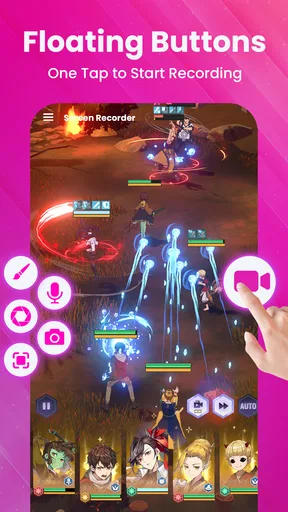
- Useful floating controls help manage recordings without leaving the current app.
- Recorded videos can be reviewed and shared directly from the app.
Limitations of Screen Recorder | Video Rec
- Recording quality may vary depending on the device’s hardware and available storage.
- Long sessions can consume considerable battery power and storage space.
- Some features may require in-app purchases or display advertisements.
- Internal audio recording may be limited by Android version or device restrictions.
- The floating control overlay can occasionally obstruct buttons or on-screen content.
Other Releases by Infinity Tech Systems
View All
Digital Compass - GPS Compass
Travel & Local4.2

All Document Reader & Viewer
Productivity4.0

HD Video Player & Media Player
Video Players & Editors4.8
Similar Picks in This Category
View All
Google TV
Google LLC3.9

iTunes
Apple4.7

YouTube
Google LLC3.8

MX Player
Amazon Mobile LLC4.2

CapCut - Video Editor
Bytedance Pte. Ltd.3.5

PLAYit-All in One Video Player
PLAYIT TECHNOLOGY PTE. LTD.4.5
Frequently Asked Questions
What is Screen Recorder | Video Rec used for?
Screen Recorder | Video Rec is designed to capture your Android device’s screen as a video. It can be useful for creating app tutorials, recording gameplay, saving video calls where permitted, documenting technical problems, or sharing step-by-step demonstrations. After recording, you can usually review the clip, save it to your gallery, and share it through compatible apps. Available tools may vary depending on your device and Android version.
Does Screen Recorder | Video Rec record audio as well as the screen?
The app may support microphone audio, internal device audio, or both, depending on the permissions it receives and the capabilities of your phone. Before starting, check the recording settings and perform a short test because some devices restrict internal audio capture. Remember that microphone recordings can include background noise, while recording calls or other people’s voices may require their consent and must follow local laws.
Is Screen Recorder | Video Rec free to download and use?
Screen Recorder | Video Rec may be available as a free download, but the exact experience can depend on the version installed and the developer’s current monetization model. Free editions can include advertisements, optional purchases, or limitations involving recording quality, duration, editing tools, or watermark removal. Review the Google Play listing and in-app purchase information before downloading so you understand any possible costs.
What permissions does Screen Recorder | Video Rec require?
A screen-recording application generally needs permission to capture your display and may request access to the microphone, notifications, storage, or media files. These permissions support recording audio and saving or sharing videos, but you should examine each request carefully. Grant only the access you consider necessary, and remember that changing permissions later through Android settings may disable certain features until they are restored.
Why might recordings from Screen Recorder | Video Rec look blurry or fail to save?
Recording quality can be affected by the selected resolution, frame rate, available storage, device performance, battery level, and the app running in the background. If a video looks blurry, try lowering or adjusting the resolution and bitrate settings. If saving fails, free up storage, close demanding apps, keep the device cool, and test a shorter recording. Some protected apps may also block screen capture completely.
